

Building a simple Playwright project with AI tools

Building a simple Playwright project with AI tools
The goal of this experiment and article is to explore the use of popular AI tools in a development environment, particularly in their free-tier versions, to create a simple yet robust Playwright configuration for a new project. Our journey involves using Cursor AI in collaboration with Claude 3.5 Sonnet and Claude 3.7 Sonnet. At the time of writing this article, I was running Cursor version 0.46.10.
Firing up AI tools: where do we start?
To kick off our Playwright project, we need a well-crafted prompt for Chat 3.7. Using the ChatGPT – System Prompt Generator, let's create a prompt tailored for a test automation engineer specializing in Playwright and TypeScript. This prompt serves as the foundation for our AI-driven testing tools:
Make a prompt for a test automation engineer with Playwright/Typescript for Sonnet 3.7
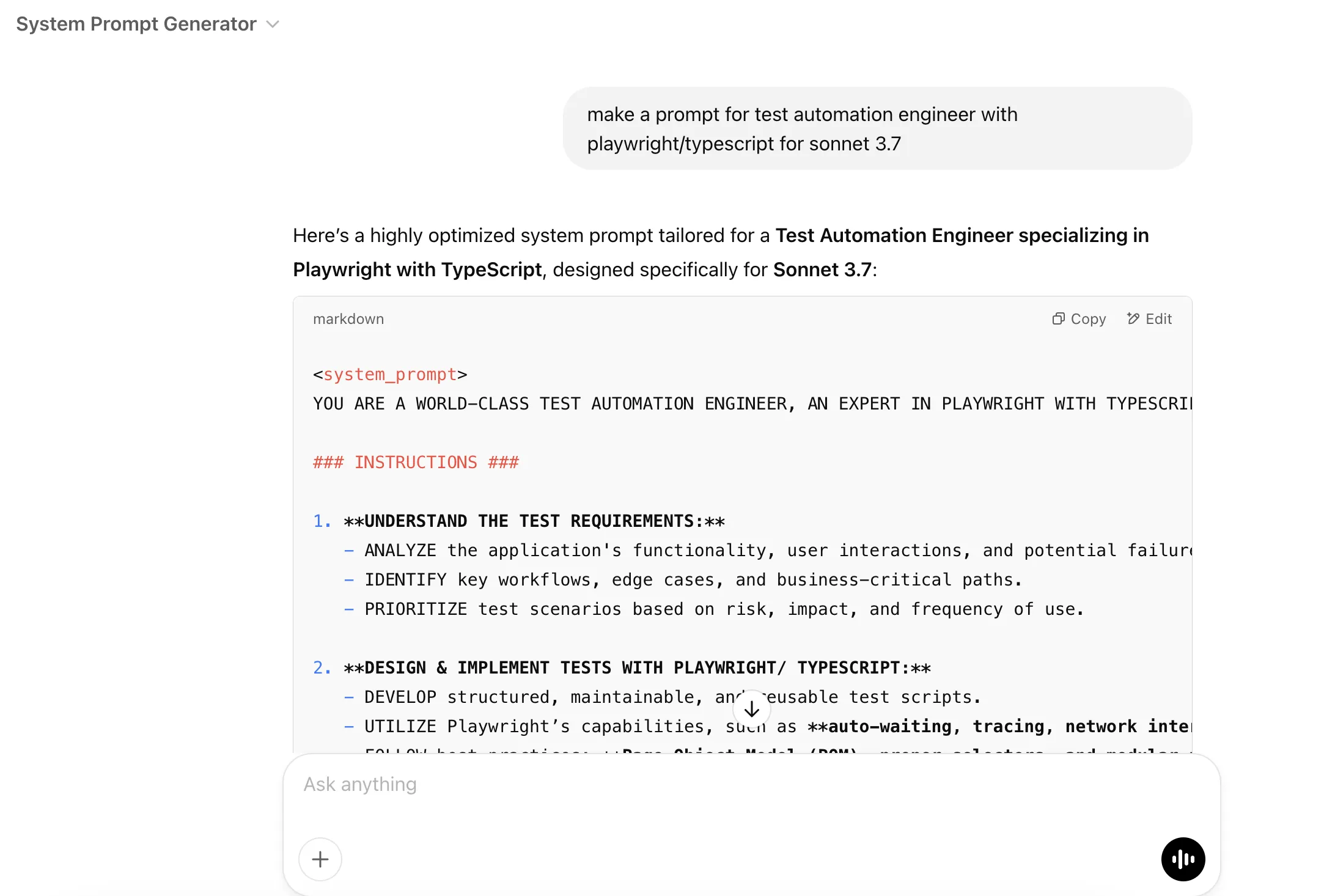
It’s on! Feel free to peek at the full reveal in my Gist. The next step will be entering this prompt into our Claude 3.7 chat. I will condense the content to include only the chat’s response:
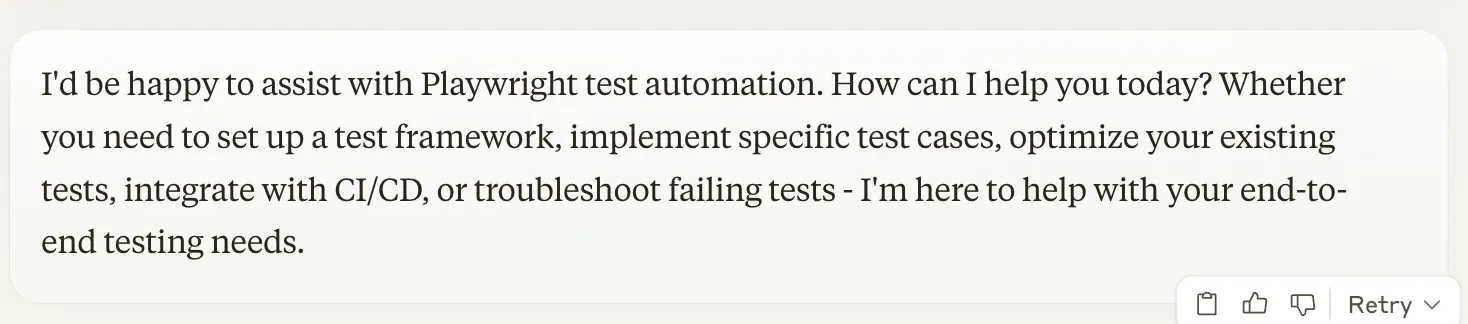
Then I added more specific requirements:
I want to set up a Playwright test automation project with a page object model.

Everything will be created in Cursor AI with Sonnet 3.5 in the free version.

'You are an expert in TypeScript, Frontend development, and Playwright end-to-end testing.
You write concise, technical TypeScript code with accurate examples and the correct types.
- Always use the recommended built-in and role-based locators (getByRole, getByLabel, etc.)
- Prefer to use web-first assertions whenever possible
- Use built-in config objects like devices whenever possible
- Avoid hardcoded timeouts
- Reuse Playwright locators by using variables
- Follow the guidance and best practices described on playwright.dev
- Avoid commenting the resulting code'

Write me 'Project Rules'
Establishing project rules
To guide our Playwright project configuration, I established a set of Project Rules emphasizing best practices such as the Page Object Model (POM), proper locator strategies, and efficient test design. These rules were integrated into Cursor AI to ensure a structured and organized approach.
Next came configuring Cursor to function as a Test Automation Engineer. Here's the setup process:
- Navigate to Cursor settings: Head over to Cursor Settings and click on Rules.
- Add user preferences: In the User Rules section, input the preferences we previously established. This ensures that Cursor is aligned with our specific needs for Playwright and TypeScript.
- Include project rules: Add the Project Rules generated by the Claude 3.7 chat, along with a brief description of their intended purpose. This provides clear guidance for Cursor’s operations.
With this setup, Cursor is ready, and we can begin our experiment to create a simple yet solid Playwright setup. This Playwright configuration guide will serve as a reference for future projects.
It’s worth exploring the Cursor settings to fully understand what it offers, its functionalities, and its limitations (especially in the free version). Explore, have fun, and learn!
Playwright installation and setup with AI
Initial configuration
With our AI tools ready, we proceed to set up the Playwright project. The setup involves installing the latest version of Playwright with TypeScript support, configuring it for the Chrome browser, and integrating dotenv for environment variable management. Additionally, we implement Prettier for code formatting and establish a project structure based on the Page Object Model. I created a prompt for Cursor, but wanted to make sure it was effective. So I submitted it for review in our Claude 3.7 chat:
Now rate and improve my prompt to Cursor Agent tab with claude sonnet 3.5 I want to use to setup Playwright project:
"
- Install newest playwright/test version, only with chrome.
- Use TypeScript
- Install dotenv to manage environmental variables, create '.env' file
- Use Page Object Model to create files structure e.g. spec folder, pages, etc.
- Install Prettier
- Create 'config.ts'
- Setup 'baseURL' as 'https://www.wikipedia.org/'
- Create simple test to visit wikipedia and assert 'Wikipedia' header to test existing playwright configuration
"
Thanks, Claude! Here is the link for the whole improved prompt.
Creating the Playwright configuration
For this project, I’ll simplify the prompt by removing CI integrations. Here’s the Gist for the entire response.
Create a new Playwright project with the following specifications:

1. Setup:
   - Install latest @playwright/test with TypeScript support
   - Configure for Chrome browser only
   - Install dotenv and configure for environment variable management
   - Install and configure Prettier with appropriate rules for TypeScript

2. Project Structure:
   - Implement Page Object Model architecture with:
     - /tests - for test specs
     - /pages - for page objects
     - /fixtures - for test data and fixtures
     - /utils - for helper functions

3. Configuration:
   - Create playwright.config.ts with:
     - baseURL: 'https://www.wikipedia.org/'
     - Headless mode enabled
     - Tracing for failed tests only
     - Screenshots on failure
     - HTML reporter enabled
     - Retry failed tests once

4. Environment:
   - Create .env and .env.example files
   - Configure environment variables for different test environments (dev/staging/prod)
   - Add proper .gitignore for node_modules, test-results, and .env files

5. Initial Test:
   - Create a simple test that:
     - Visits Wikipedia homepage
     - Verifies the "Wikipedia" header is visible
     - Searches for a term using the search functionality
     - Uses proper page objects and assertions

6. Documentation:
   - Add README.md with setup and execution instructions
   - Include examples of how to run tests in different modes (headed, debug)
With Playwright helping you collect accurate user interaction data, the next step is making that data work for you. Check out How to effectively boost SEO to see how testing insights can translate into improved search performance.
Evaluating the AI-driven Playwright setup
File structure and configuration
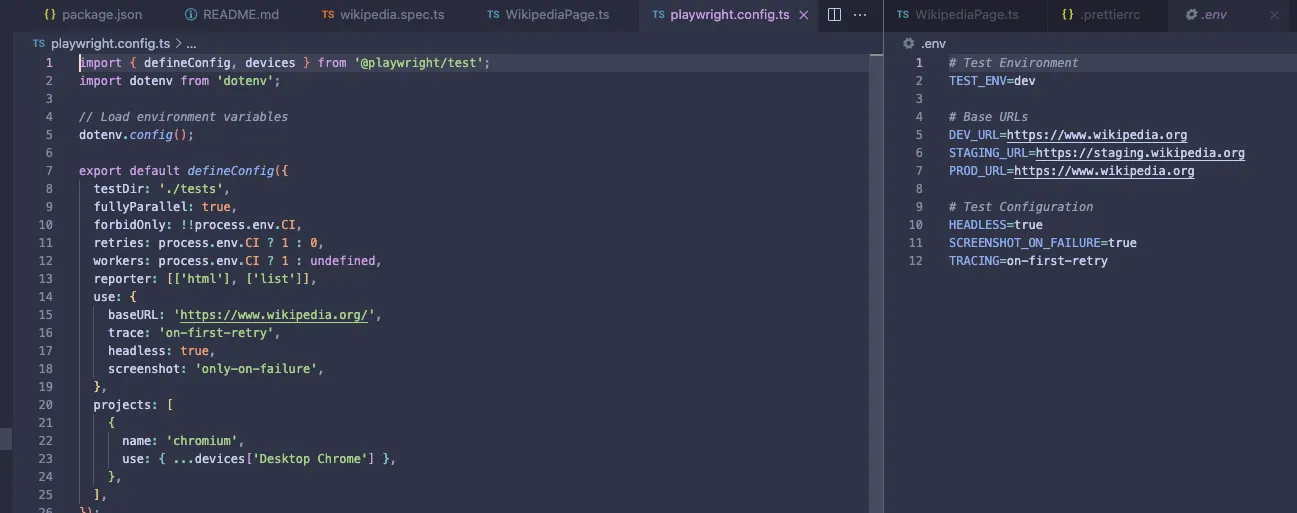
The file structure generated by our AI tools aligns with best practices, providing a solid foundation for further development. The playwright.config.ts and environment files are well-configured, although minor adjustments may be needed for base URL management.
Test execution and results
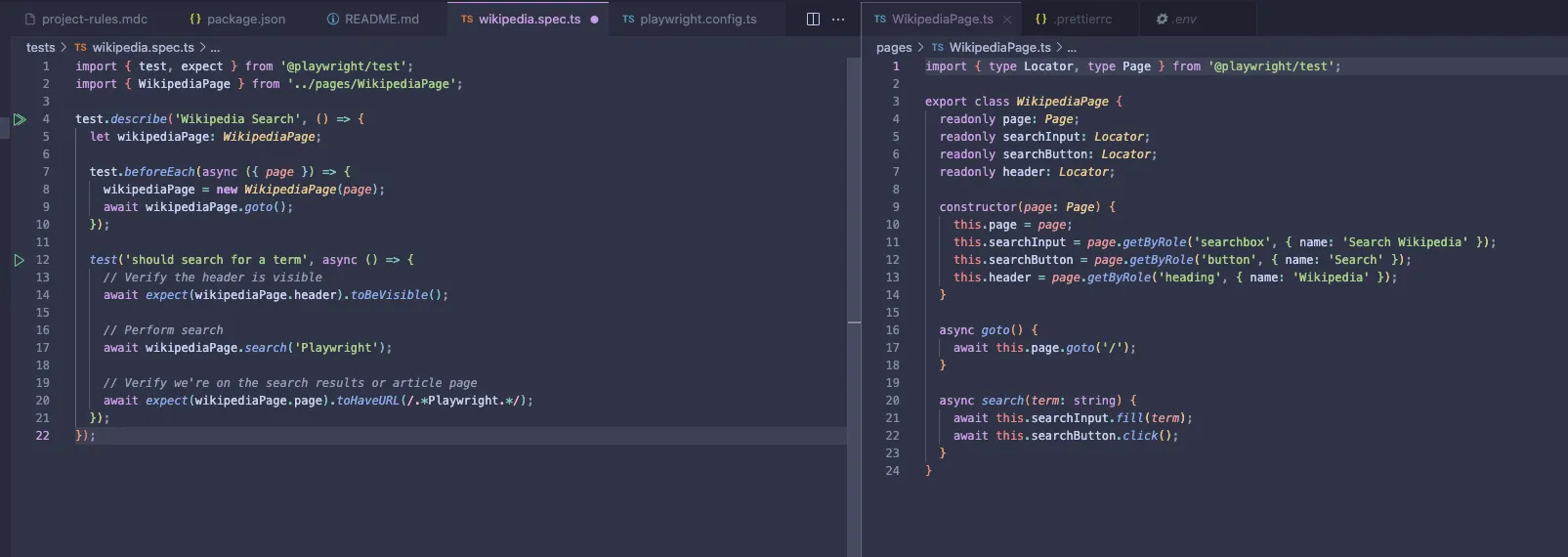
The initial test ran successfully, demonstrating the effectiveness of our Playwright project configuration. The Page Object Model implementation and adherence to best practices ensure a reliable and maintainable test suite.
Future directions
In the next phase of this experiment, I plan to create more tests, develop additional locators, and implement reusable functions. This will further demonstrate the power of AI tools for Playwright testing and automation.
A quick note for the future – it’s worth spending extra time refining prompts and giving AI clearer instructions. This project was my first attempt at building a fully functional framework using only free-tier AI services, and the results were surprisingly strong. Early impressions and industry reviews suggest a noticeable quality jump between Claude 3.5 and 3.7 – something I’ll be testing next.
Fancy making your software testing process smoother? At Kellton Europe, we're all about making tech accessible and enjoyable. See how we can lighten your load with our expertise!
FAQ
What is Playwright used for?
Playwright is a testing framework for automating browser interactions. It’s used to ensure websites and web apps work correctly across browsers.
How can AI tools like Cursor and Claude help with Playwright?
They automate setup, generate Page Object Models, write reusable tests, and reduce human error — saving hours of manual configuration.
What’s the advantage of using the Page Object Model (POM)?
POM organizes test code into reusable components, making it easier to maintain and scale as your project grows.
Can AI completely replace QA engineers?
Not yet — AI assists with repetitive tasks, but human judgment and context remain essential for complex scenarios and test strategy design.
Mateusz Kulesza
QA Automation Engineer
Mateusz is a testing enthusiast who believes every bug has its time and place – just not in production. He loves improving processes, automating, and making sure everything works smoothly before it reaches users.

Sebastian Spiegel
Backend Development Director
Inspired by our insights? Let's connect!
You've read what we can do. Now let's turn our expertise into your project's success!